

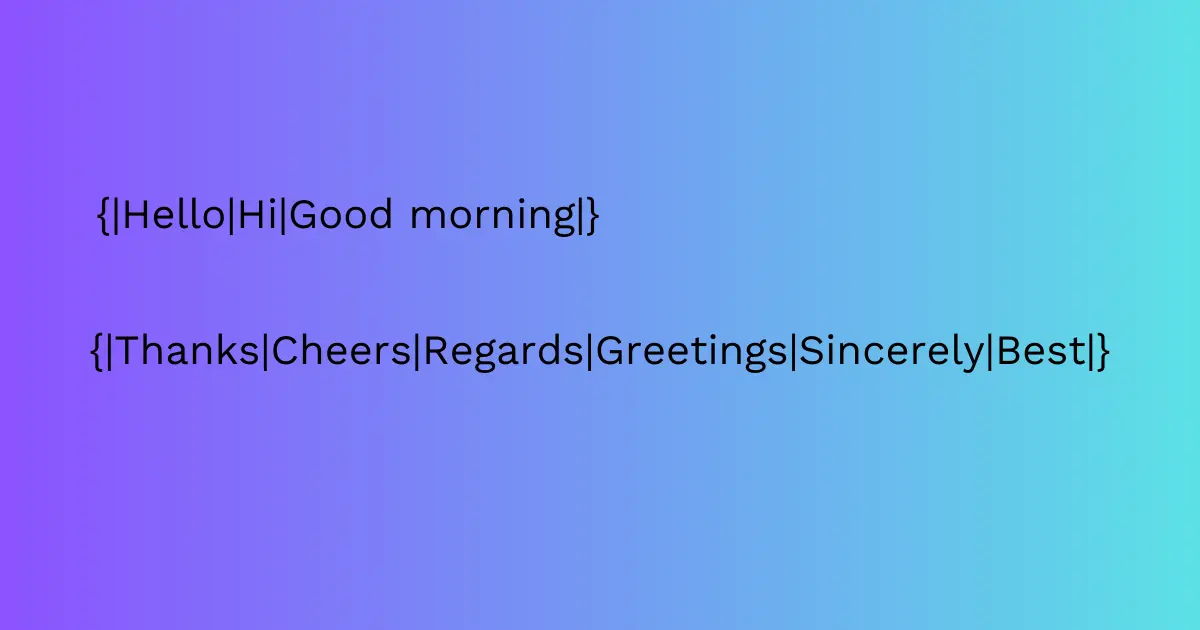
Spintax (spinning syntax) stores several wordings in one cold email. A block such as {|Hi|Hello|Good morning|} makes the tool pick one option each time that email sends, so the copies are not word-for-word identical. Inbox placement, replies, and meetings come from the offer, the list, and the mailbox. The syntax only swaps the wording.
What is Spintax in Cold Emails?
In a cold email, spintax is a set of alternate words, phrases, or sentences inside one template. Spin tags mark those options. The tool sends one option per email, so two people on the list can see different lines from the same campaign.
For example:
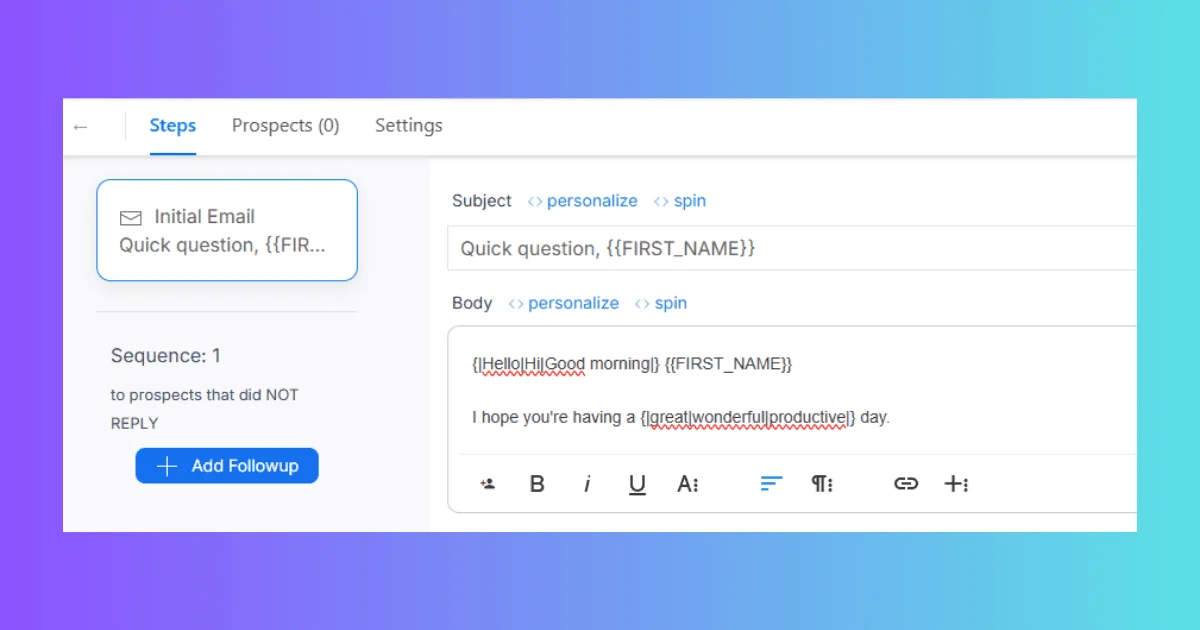
This will generate variations like:
Hello {{FIRST_NAME}}
Hi {{FIRST_NAME}}
Good morning {{FIRST_NAME}}
and
I hope you’re having a great day.
I hope you’re having a wonderful day.
I hope you’re having a productive day.
You can vary the greeting, the next line, or both. Each option should make sense on its own.

How to Use Spintax?
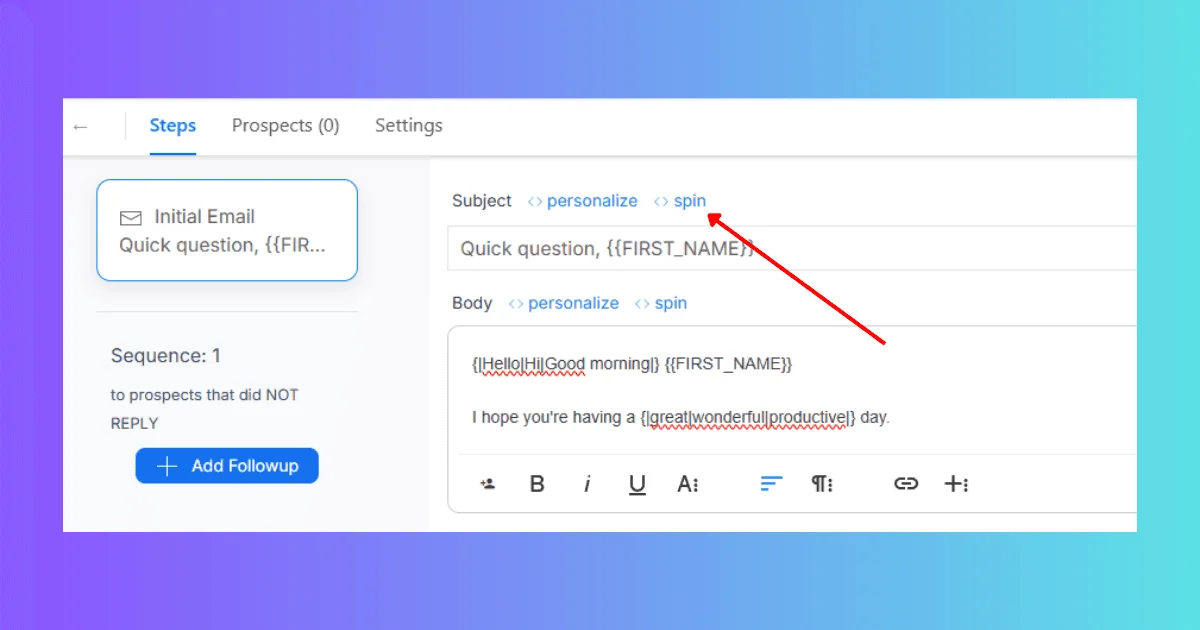
Open the campaign composer and put the spin in the body. Manyreach includes spintax, merge fields, and custom variables. The screenshots show a Spin control, then Opening, Closing, and AB Test. Those words are labels in the images. If your editor uses different names, type {|option|option|} yourself.
The screenshot below points at Spin.
The next screenshot shows three options.
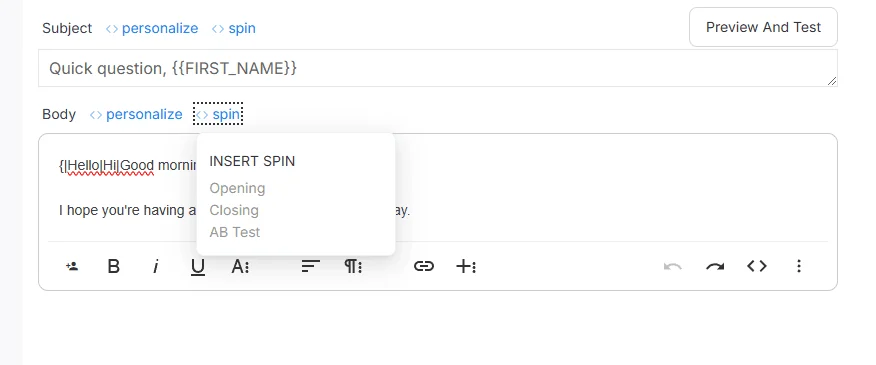
The Opening label inserts this in the body:
{|Hello|Hi|Good morning|}
The Closing label inserts this:
{|Thanks|Cheers|Regards|Greetings|Sincerely|Best wishes|Kind regards|Best|}
The AB Test label is for a second version of the email. Read both versions in your tool and keep the one you want to send.
You can also type the braces and pipes yourself.
Example: {|great|wonderful|productive|}
Spintax text formatting rules
Start with an opening curly brace and a pipe, separate each option with a pipe, and end with a pipe and a closing curly brace. {|Hello|Hi|Good morning|} is valid. Each option should make sense in the sentence by itself. Do not leave an empty option between two pipes.

How to Use Variables within Spintags?
Put a variable inside a spin when each option should still include a name, company, or role from your list. One team's outreach is written up in the Rank Wizards case study. The syntax is below.
What are Variables?
Variables are placeholders replaced by data from your contact list (for example, a CSV file or CRM).
The examples on this page write placeholders as {{COMPANY}}, {{FIRST_NAME}}, {{INDUSTRY}}, and {{JOB_POSITION}}. That double-brace shape is the pattern printed here. Other editors use {{first_name}}, {first_name}, [[first_name]], or %first_name%. Use the wrapper your editor inserts.
The screenshot below shows a Personalization control with a list of fields. That label is what the image shows. Use only variables you filled in the CSV. An empty field can leave a blank or the raw placeholder in the sent copy.
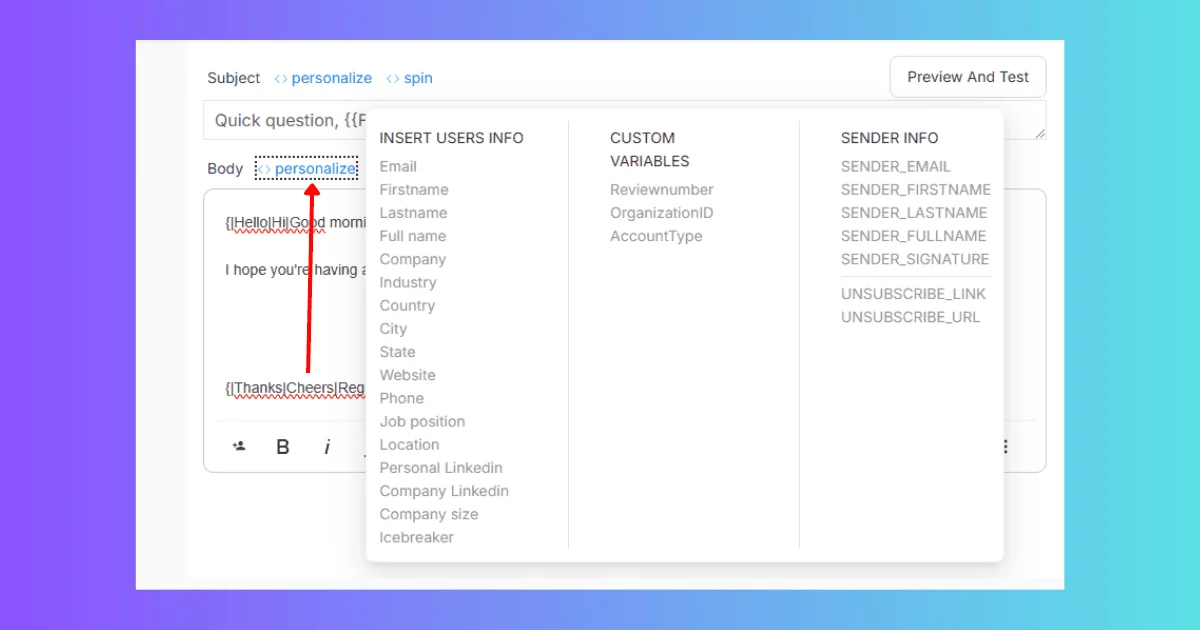
Insert Variables within Spintags
This method creates different variations of a single sentence.
For example:
{|What challenges do you face in {{job position}}?|What solutions have you discovered for overcoming obstacles in {{job position}}?|}
or
{|It was great to meet you at {{Location}}|I came across your profile while researching {{Industry}}|} and thought I’d reach out.
Another example:
{|Would love to learn about your goals for {{Year}}|How are you planning to tackle {{specific challenge}}?|}
Benefits of Using Spintags in Cold Emails
Use spintax when one template should carry a few real wordings. The spin changes words. It leaves the offer, the list, and the mailbox as they are.
Specific lines: A spin changes the wording. A variable inserts a detail you already stored, such as job or company. Write the line so that detail belongs there.
One template: You write the options once, then the tool fills each send. You can still edit a single prospect by hand when the row needs it.
A way to compare versions: Send the versions your tool already supports and read the replies. Keep the version that matches the offer. See open and reply patterns for context, and reply and conversion patterns beside them.
Copies that differ: Two recipients can see different greetings from the same campaign. Copy, links, and volume are covered in cold email vs spam.
A reason to reply: Relevance gives the reader a reason to answer. Match the sentence to the person, then read it aloud before you send.
Conclusion
Spintax plus variables lets one template carry several wordings and still insert a name, company, or role from your list. Write each option so it reads as a normal sentence, and send a few test copies to yourself before the campaign goes out.
Keep spins on openings, closings, and one sentence in the body rather than every adjective. To check a spin, read each option alone, then compare two rendered copies and keep the one that still sounds like a person.
If a variable has no value in the CSV, that copy can show a blank or the raw placeholder. Use only fields you filled in.

FAQs
What is spintax?
Spintax means spinning syntax: one template with alternate words or phrases, so each send can use a different option. In cold email, the copies are not identical. Spintags are the markers around those options.
What is the spintax syntax?
The pattern is {|Hello|Hi|Good morning|}. Open with a curly brace and a pipe, separate options with pipes, and close with a pipe and a curly brace. Do not leave an empty option. If your editor inserts a different wrapper, keep that wrapper.
What is a spintax example?
A closing example is {|Thanks|Cheers|Regards|Best|}. A sentence fragment is {|great|wonderful|productive|} inside a line about the day. The greetings higher on this page are Hello, Hi, and Good morning, plus a first-name placeholder.
How do I add spintax in Instantly, Smartlead, or Lemlist?
Use the syntax that Instantly, Smartlead, or Lemlist inserts in its composer. This page does not document their menus. The {|option|option|} lines above are the phrase pattern. Spin, Opening, Closing, and AB Test are labels in the screenshots on this page.
 Share Article